
Summary
Create a Planning Live Forecast when you need an updated P&L outlook between monthly Forecast submissions. It uses the latest saved revenue Live Forecast from PMI R&P; you do not need to submit those revenue values to the monthly Forecast first.
Which P&L values use Live Forecast?
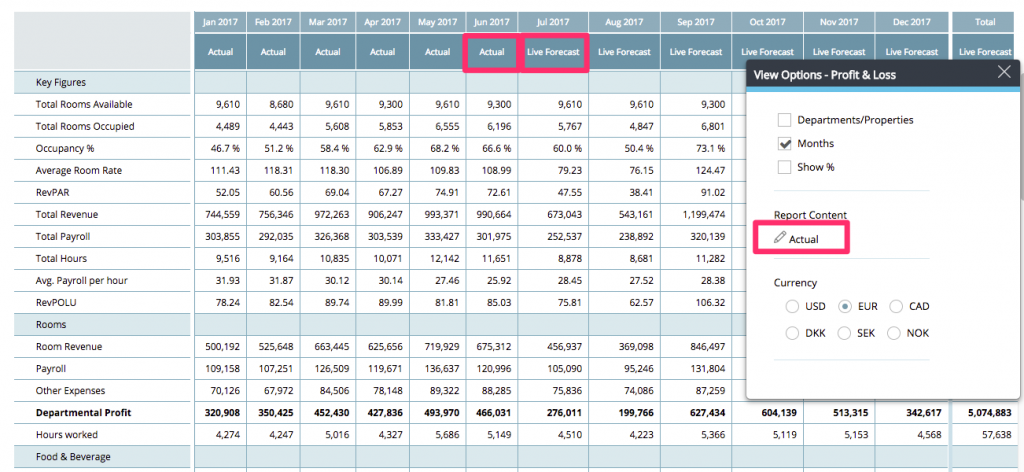
When this feature is enabled, Actual / Live Forecast combines actuals for earlier periods with the generated Planning Live Forecast for the forecast period. It is not limited to a separate Live Forecast column: choosing Actual in the relevant Planning view or report can also include Live Forecast values.
The switch from actuals to Live Forecast follows the property’s configured actuals cutoff. This normally means actuals for past months and Live Forecast for the current and future months. If actuals are delayed, the configured cutoff can keep an earlier month in the forecast period too. Check the selected view and period before treating an Actual-labelled value as recorded actuals.
- Connected revenue accounts: use the saved PMI R&P Live Forecast.
- Formula-based costs: recalculate using their inputs, including the updated Live Forecast values where the formula uses them.
- Manually entered costs: are copied from the work-in-progress (WIP) Forecast.
- Labour cost: follows the property-wide calculation option chosen when the feature was activated, as explained below.
Refresh the Planning Live Forecast after changing its sources. It is a generated snapshot, not a continuous connection to R&P. Save the source changes, then use Tools → Create Live Forecast for the required period and property to bring them into Planning.
Intended Users
GM, HOD and Business Controllers
Requirements
User rights to work in planning
Instructions
The hotel needs to contact d2o support to activate this function.
When activated there will be some changes inside of Planning. This feature is bringing in what ever is saved in the Revenue Live Forecast in PMI R&P into Planning.
Revenue
All revenue that is connected to PMI R&P will be updated with the saved Live Forecast from PMI R&P.
Cost
All costs that are calculated out of any other information in Planning or connection to R&P revenue forecast with a formula will be recalculated with the new information from Live Forecast.
Cost that is not connected to any formula but added manually will be copied from WIP Forecast.
Labour cost
There are 3 options for calculating Labour Cost. One of the three alternatives below is chosen upon activation and applicable for the entire PMI property.
- Adjusted for Activity – set calculations is done for each cockpit deciding how the hours should be affected by an increase or decrease in the cockpits cost driver with a percentage ratio. If you wish to alter the percentage at a later stage, this needs to be done by d2o support.
- Cockpit Live Forecast – Cockpit Live Forecast hours(also shown as cockpit target hours in schedule module) are multiplied with the rate in the cockpit and this sum is added to the account under Labour cost that is connected to the Staff Module for WiP Forecast. Remember to always keep the rates updated!
- WIP Forecast – no changes to Labour cost is done, a copy of the WIP forecast is added to the Live Forecast column.
Number 2 or 3 are recommended as best practice to be used.
You cannot change the Live Forecast figures in Planning, all changes needs to be done at the source, i.e. the revenue must be changed in PMI R&P Live Forecast. Labour cost must be changed either in Cockpit or in WIP Forecast, depending on choice made above.
Tools
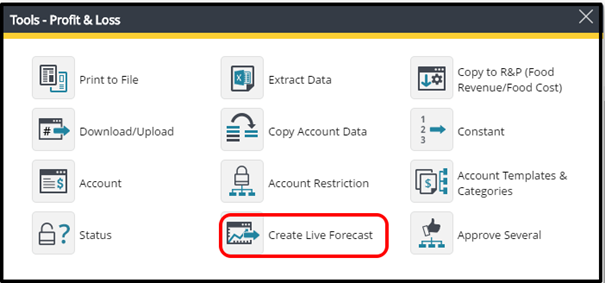
To create the Live Forecast, that can be done at any time, please find “Create Live Forecast” in the Tools menu.
Once selected, another tool will appear where you choose what date range to create the Live Forecast for and also for what group or property(how many properties you see is user right based). You may also choose “All”.
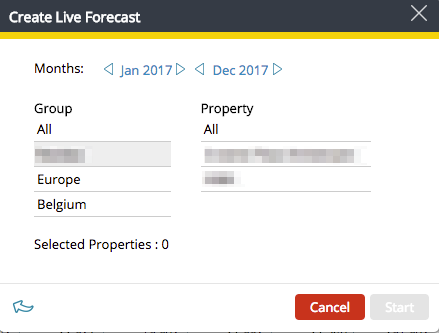
There is no “live” connection between PMI R&P Live Forecast and PMI Planning – thus this exercise needs to be done every time you want a new Live Forecast in PMI Planning.
If choice 2 in calculating Labour cost is chosen please note the below that must be completed as part of you monthly routines to add the correct rate into the cockpits.
After the forecast is done in PMI Planning Staff module the rate has to be sent back to the cockpit. Under Tools in the Staff Module you make the choice below:
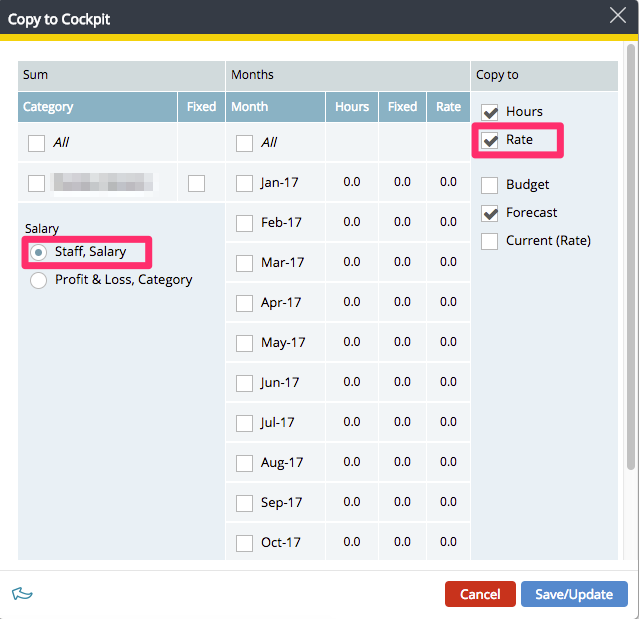
View Options
With this feature enabled, the Actual / Live Forecast view shows actuals before the property’s configured actuals cutoff and the generated Planning Live Forecast from that cutoff onward.
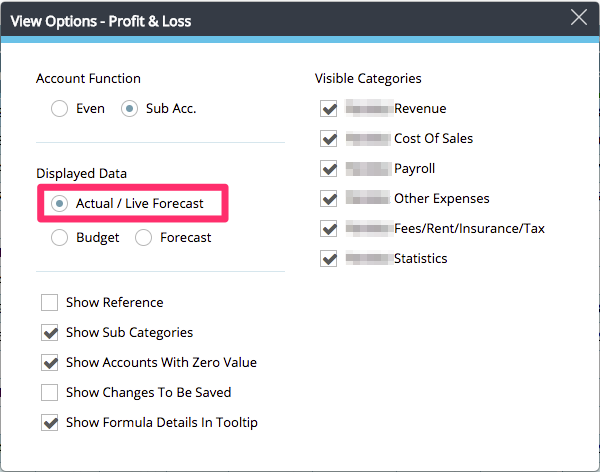
In reports, selecting Actual can likewise include Live Forecast for the forecast period. Apply the same cutoff distinction when interpreting these figures; the current month is normally Live Forecast, while earlier months normally show actuals.
Recommendations
Before you proceed with calculating a Live Forecast in Planning be sure to have all Live Forecast saved in PMI R&P.