
Which view does this guide cover?
This guide describes the legacy P&L forecasting workflow, including revenue connected from PMI R&P. Account mappings, editable periods and responsibilities depend on your property or chain setup and permissions. Do not apply these controls as instructions for a different new Planning view. For the new assumptions editor, see Planning assumptions.
Summary
We will now focus on what steps to take to produce a profit forecast in PMI Planning.
Intended Users
GM, Controllers and Heads of Departments
Revenue
The work with your forecast starts with the revenue section. In the source-linked setup described here, operational revenue is collected from PMI R&P. Update that revenue in its originating forecast and send it to Forecast as described below; do not replace the account’s source connection with a manual amount. This is not a restriction on all revenue accounts: eligible manually maintained accounts, such as certain non-operating revenue accounts, can be entered in Planning when your setup and permissions allow it.
Room Revenue
Make sure that you have saved your live forecast in PMI R&P for the period you want to work with. You must save your live forecast and send it to Forecast.
Room Revenue data is collected automatically into the department Front Office and, generally, an account named Rooms Sales; the account id varies from property to property.

Other Sales
Make sure that you have saved your live forecast in PMI R&P for the period you want to work with. You must save your live forecast and send it to Forecast.
Best practice is to do this for every outlet and to update as above.
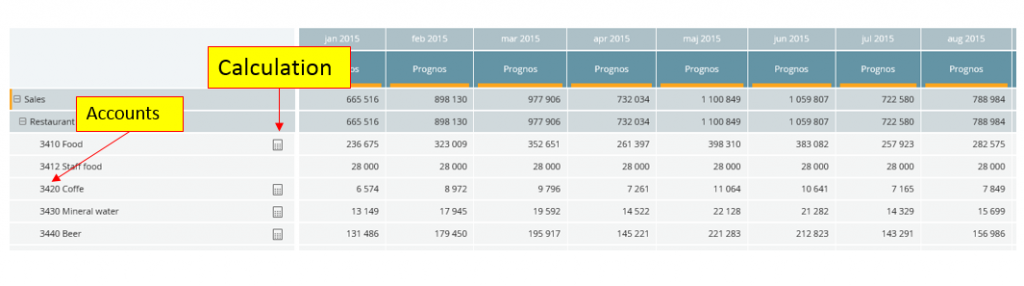
Sales are registered on different accounts depending the property. In this example, 3400 – 3900.
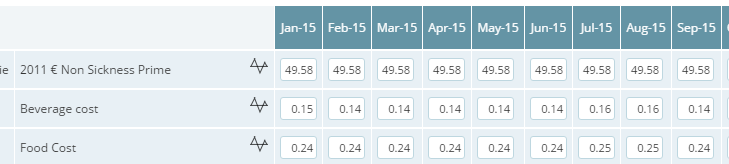
To get a correct distribution of the total forecasted revenue on these accounts, you must put in a split of the sales as constants. Make sure the stored ratios total 1 (100%). For plain decimal ratios this means, for example, 0.60 + 0.40 = 1. When the constants or assumptions are displayed as percentages, enter 60 and 40 instead; the displayed total is 100%.
It is important to review these constants once a year.
Other Revenue
Other revenue may differ from property to property and you may have different departments.
Departments with other revenue may be Room Rental and other sales.
Make sure you have a live forecast in PMI R&P. You have sent in the live forecast to Forecast. In the example below, you will see the calculator, meaning that the revenue data is imported from PMI R&P.

How the other sales will appear in the P&L depends on how the revenue is set up in PMI R&P, what segments are used. If you want to split the sales on even more sub-accounts, you can use Sales Mix in Constants.

Cost of Goods Sold
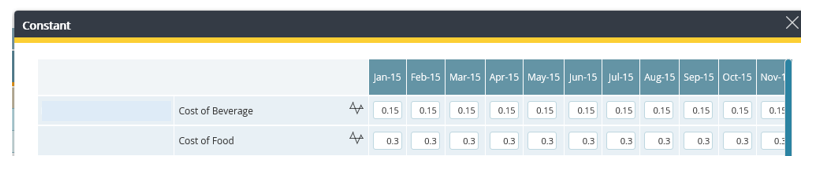
Cost of goods sold is a direct cost associated with the forecast of Sales of Goods. The forecast of cost of goods sold is done by setting the cost of goods sold in percentage. You may put the cost of goods sold percentage in Constants.

Personnel Cost
Please see the article How to add staff and manage staff cost.
Other Cost
Other costs are entered below the correct department into the correct account according to the property account list or the hotel chain’s own instructions.
Tips and Tricks
It is really important to Save your input as often as possible. This is to ensure you don’t lose any data should there be loss of internet connection. All entries done will be in green until you save. The same if there are changes to the account plan, for example if there is a change where you have a calculation.