Coming soon! Get ready to experience a brand-new PMI Home page
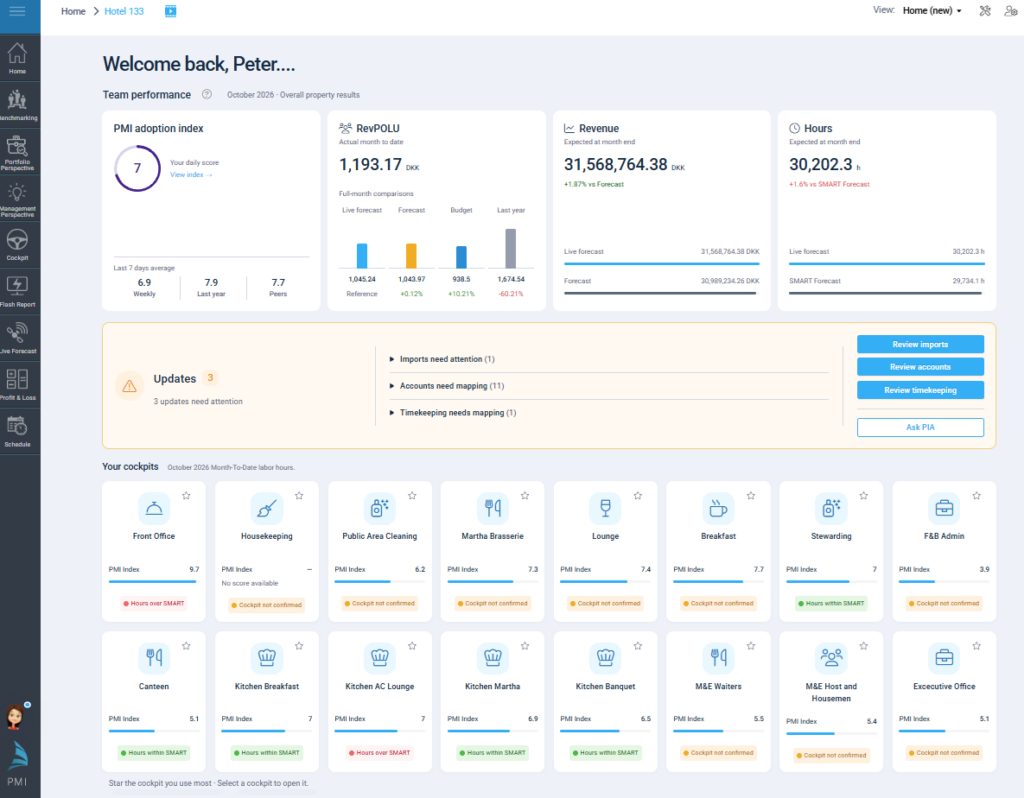
The refreshed R&P Home brings your property’s performance, department cockpits and important updates together in one place. Use it to get an overview, spot areas that need attention and open the right view to investigate.
Start with team performance
The four performance tiles show:
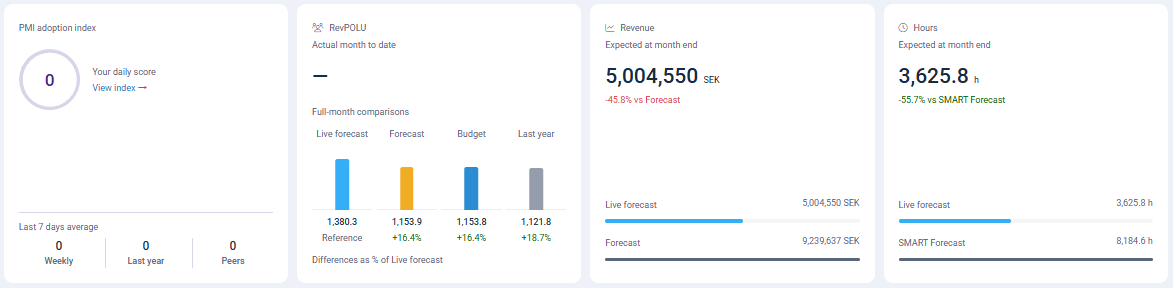
- PMI adoption index: Your property’s daily adoption score, with weekly, last-year and peer comparisons.
- RevPOLU: Actual revenue per labour unit for the month to date. The comparison bars show the full-month live forecast alongside forecast, target/budget and last year.
- Revenue: Expected revenue at month end, compared with forecast.
- Hours: Expected labour hours at month end, compared with SMART Forecast.
The period labels distinguish actual results so far from the expected full-month outcome.
Find the departments that need attention
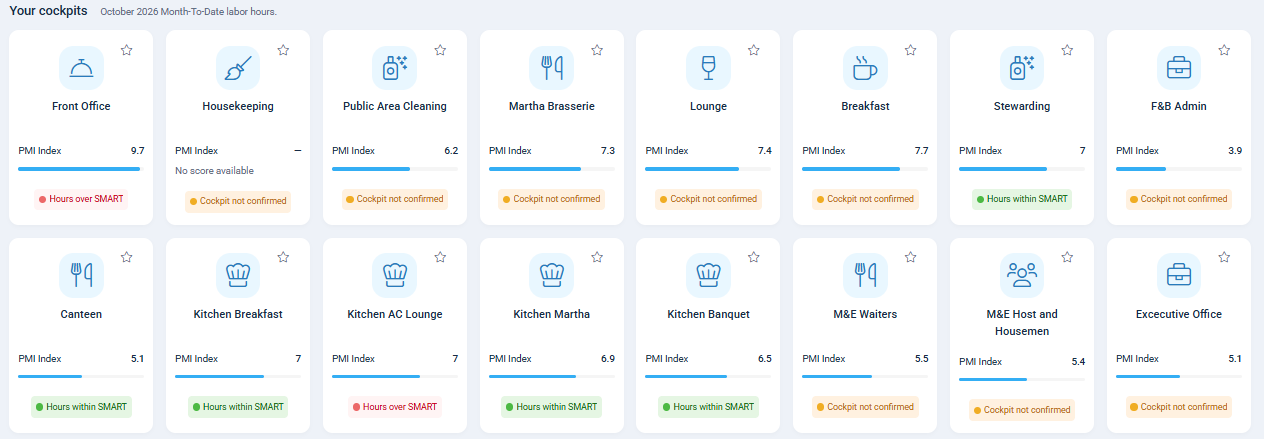
Under Your cockpits, each card opens its department’s cockpit. Department PMI Index scores and status indicators help you identify where to look more closely—for example, hours above SMART Forecast or a cockpit awaiting confirmation.
Select the star to mark a cockpit as a favourite. Favourites appear first, keeping your most-used departments easy to reach.
Act on important updates
The Updates tile groups issues such as imports needing attention, unmapped accounts and timekeeping items. Expand a category to see its details, or use its Review button to go directly to the relevant view.
Import statuses distinguish Outstanding import from Incomplete import, helping you understand what needs checking.

Make Home work for you
Open View options in the top navigation to adjust:
- Department Index: Show department scores on cockpit cards.
- Team performance: Show the property performance tiles.
- Comparison bars: Show the visual comparisons within those tiles.
- Group cockpits by division: Organise departments under division headings.
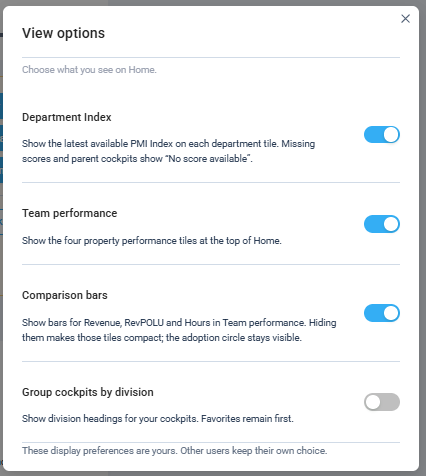
Department Index, Team performance and Comparison bars are enabled by default when you have no saved preference. Your choices are personal and do not change what other users see.
Change cockpit icons
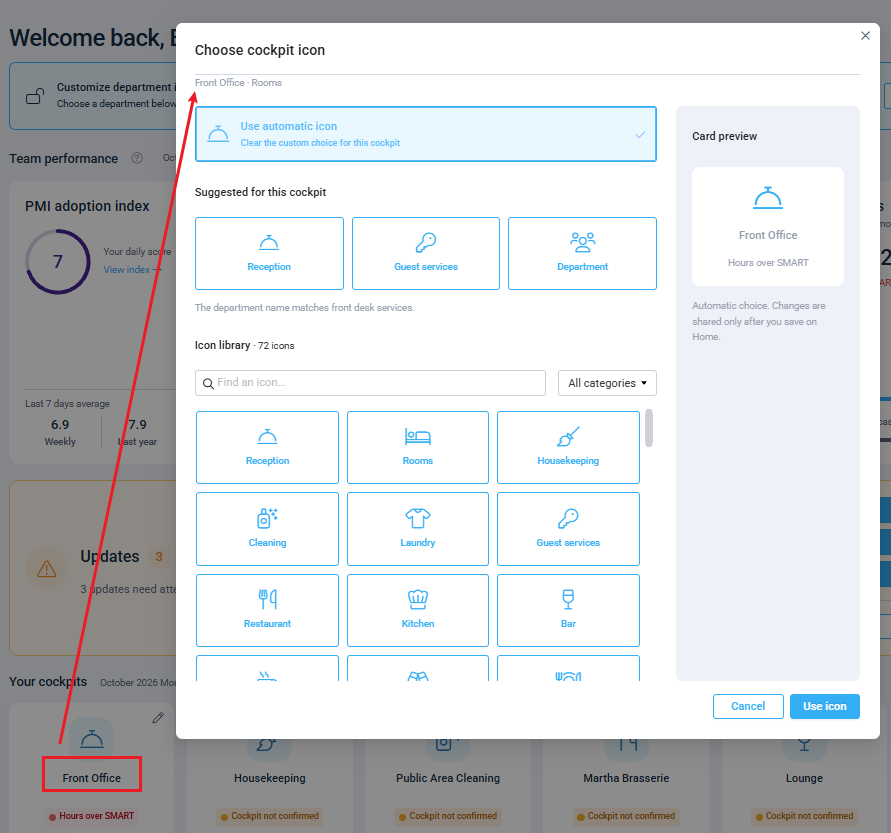
If you have the HQ Administrator role, select the Tools icon to change the icon displayed on each cockpit tile for individual properties.